Technical Level : Basic
SummaryOne of the big questions persons interested in Windows 10 are asking is how will they reinstall the operating system if needed? As you might know, many users will upgrade to Windows 10 using
Windows Update instead of using media DVD or USB. Microsoft will provide backup media for persons who might be on a slow connection. Even for persons who might be able to perform the upgrade using Windows Update, what are your options when the time comes to perform a reinstallation? In this article, we take a look at the options available.
Details
To find out your Activation Status: Click Start > Settings > Update & security > Activation
Microsoft noted the following options are available:
With Windows 10, you can create your own recovery media and back up the pristine state of the operating system and preinstalled software. If things go wrong and you are unable to refresh or reset your device successfully, you can boot the device using recovery media and reset to the prior pristine state.
What you will need?
- USB thumbdrive with 4 GBs of space or more
- Your computer running Windows 10
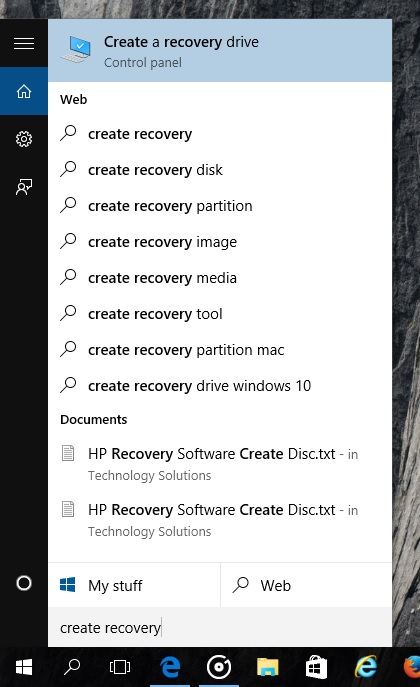
Click Start and type: create recovery
Hit Enter on your keyboard
You can also find the Recovery drive creator by opening Control Panel (Windows key + X)
Open Recovery
Click Create Recovery drive
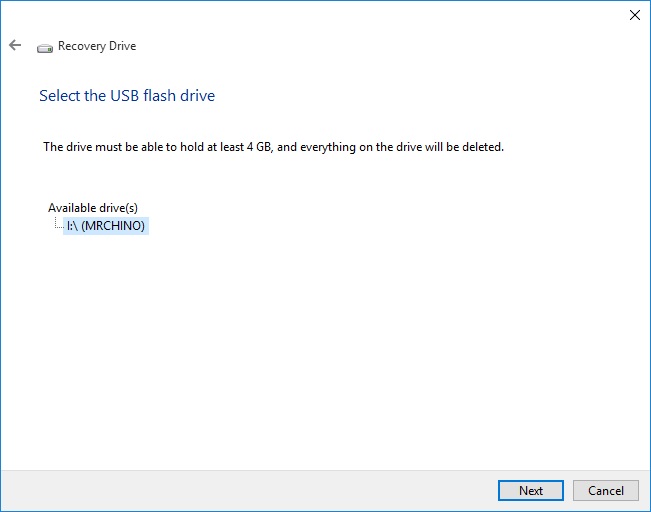
Make sure your thumbdrive is connected
Click Next
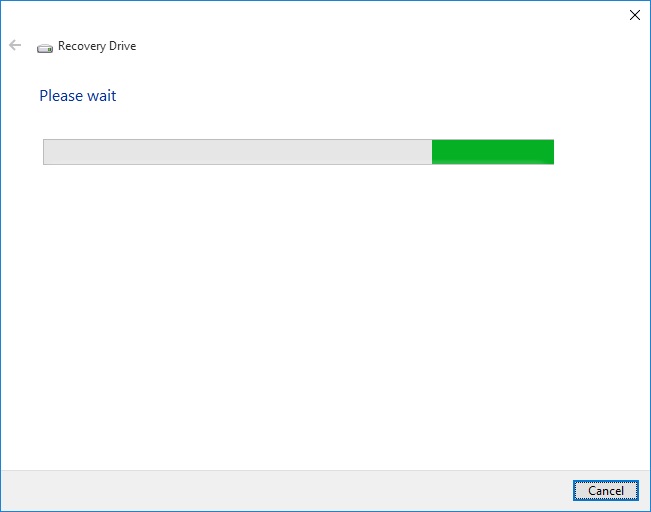
Wait while the wizard prepares to copy files to your thumbdrive.
Again, make sure your thumbdrive is at 4 GBs, click Next
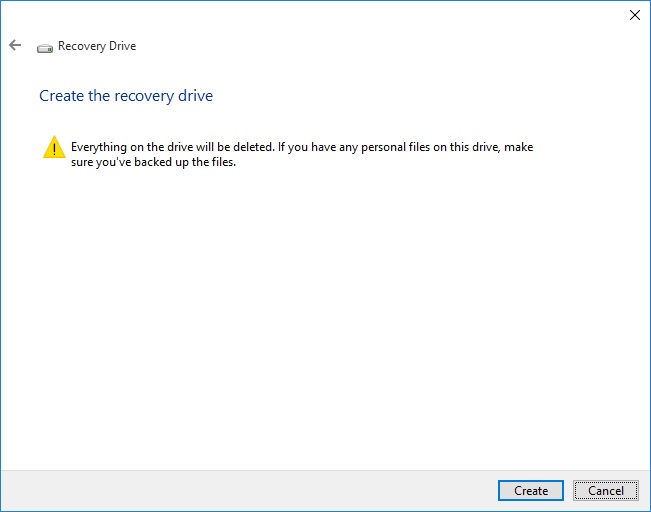
The Recovery drive wizard will provide a final warning.
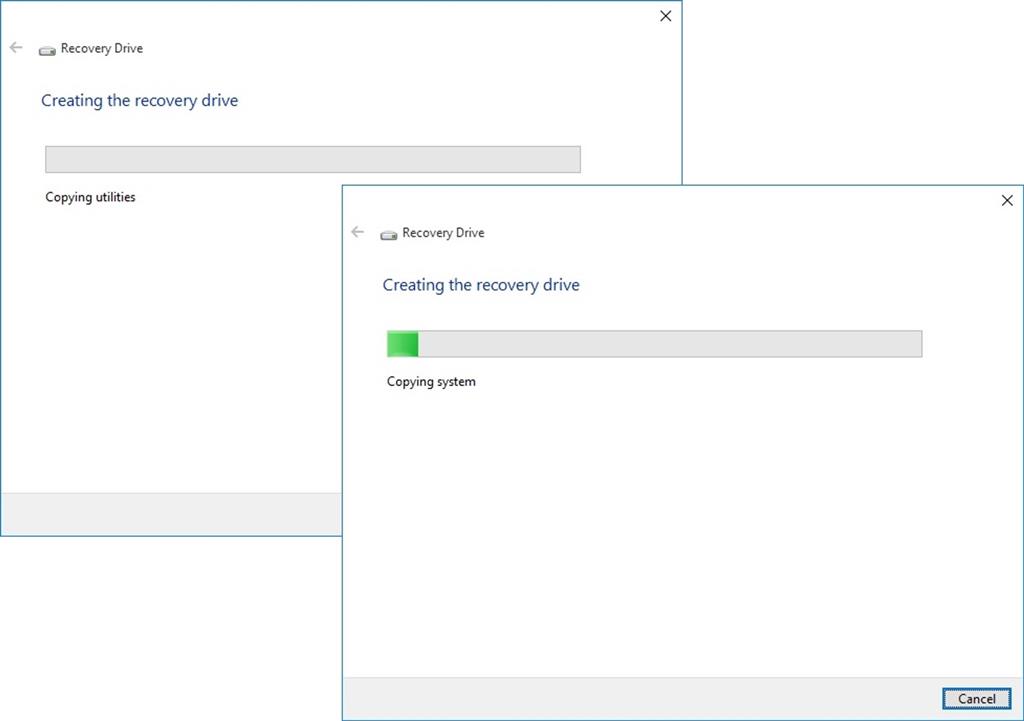
Creating the recovery drive can take some time. You can do something else while it is prepared.
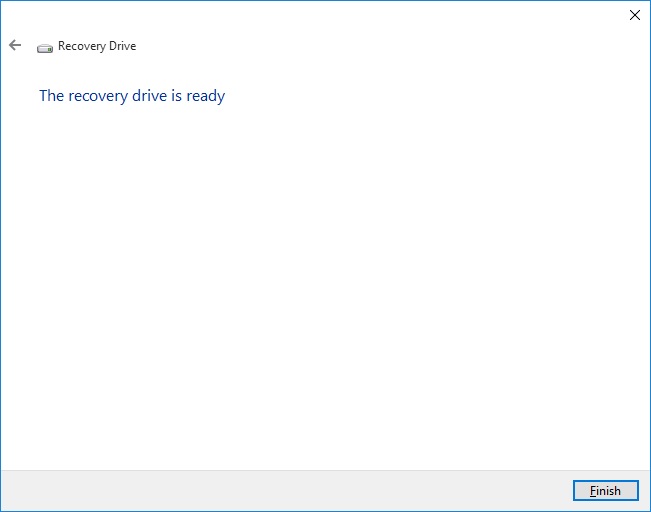
When complete, click Finish
When you need to use the recovery drive, simply connect it to your computer and boot from it. The methods for booting from a thumbdrive might vary depending on the model and make; consult your computer documentation for instructions how to boot from external media. Some might require that you press ESC, F2, F9, F10, F11, DEL or a combination of keyboard commands. Some might even require that you boot into the BIOS or Firmware and change boot options.
If you are installing from a thumb drive, see the following instructions how to prepare your computer to boot from one:
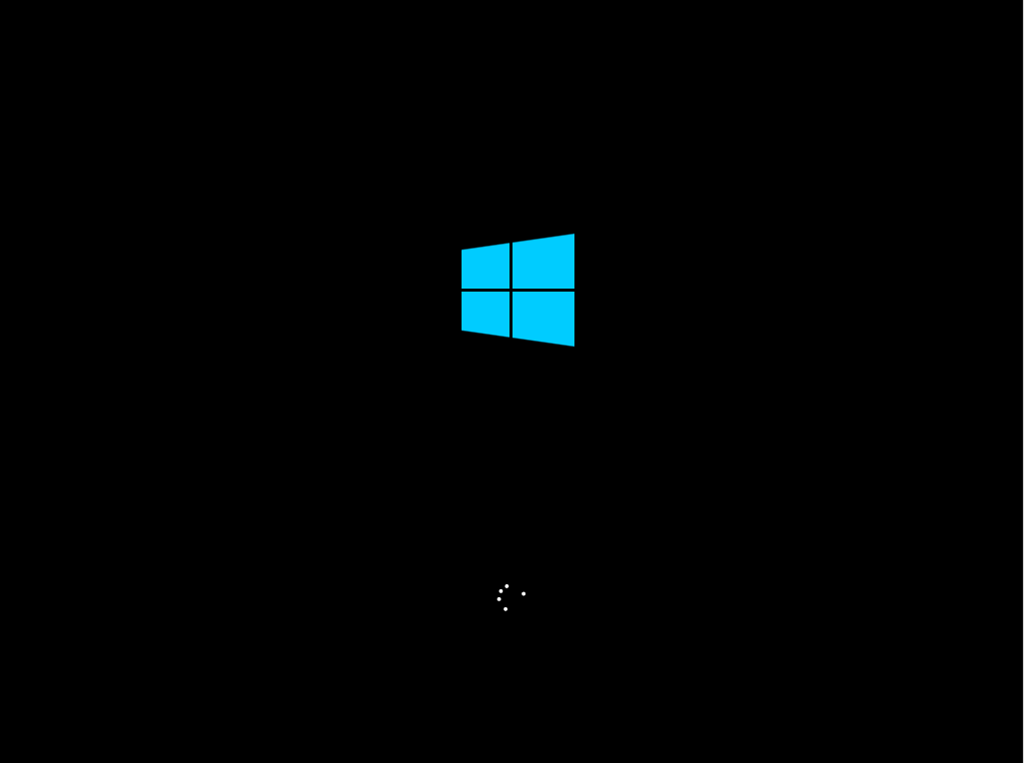
The Windows logo will appear on screen, this might be here for a while, as long as you see the indicater, everything should be ok.
Choose your keyboard layout - in my case, I will choose US. If you don't see your keyboard layout listed, click See more keyboard layouts

Click
Troubleshoot





No comments