


2018 HP Printers - Printer is Offline (Windows) | HP® Customer Support
2018 HP Printers - Printer is Offline (Windows) 10 | HP® Customer Support
HP Printers - Printer is Offline (Windows)
This document is for all HP printers and computers with Windows.
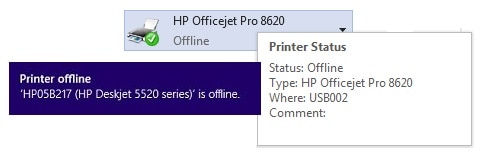
A status message of offline or printer offline displays on the computer, and the printer does not print.
Step 1: Use HP Print and Scan Doctor
If you have Windows 10 or 8, download a special version of HP Printer and Scan Doctor that was made specifically for helping with printer offline problems. Skip to the next step if your computer does not have Windows 8 or 10.
- Download the HP Print and Scan Doctor.
- Run HPPSdr.exe from the download location on your computer.
- Once HP Print and Scan Doctor is open, click Start, and then choose your printer.
- If your printer is not listed, turn it on and click Retry.
- If there is a connection problem, follow the instructions in the tool.
- Click Fix Printing.
- Click Test Print and wait for the test to fail.
- Click No Print, and restart the printer when prompted.
- If the printer continues to go offline, continue to the next step.

Step 2: Reset the print environment
Resetting the printer can help restore a connection to the computer.
- Turn the printer off, wait about 10 seconds, and then disconnect the printer power cord from the printer.
- Turn off the computer or device that you are trying to print from.
- Connect the printer power cord to the printer, and then turn on the printer if it does not automatically power on.
- If your printer uses a wireless connection, restart the router:
- Disconnect the power cord from your wireless router. Internet service will be interrupted while the router is not in service.
- Wait 10 seconds, and then reconnect the power cord to the router.
- Wait for the router’s network activity light to light.
- Press the wireless button or wireless control panel icon on the printer to turn the wireless connection off, and then on.
- Wait for the printer to reconnect to your router.
- Turn on the computer.
- Try to print.
- If you can print, you are done.
- If the printer cannot print and remains offline, continue to the next step.
Step 3: Set the default printer
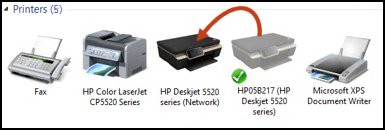
The default print driver might have changed from the driver you installed to another driver, such as a Web Services for Devices (WSD) driver with a very similar name. Change the default print driver to your originally installed driver and confirm the printer is not set for offline use.
- Search Windows for devices, and then click Devices and Printers from the list of results in Settings.
- Right-click the name of the HP printer that is active (not grayed out), and then select Set as Default Printer.
- Try to print.
- If you can print, you are done.
- If the printer cannot print, continue.
Thanks for sharing useful information. Keep it up!
ReplyDeletehttps://printerofflinehelp.com